Millions of people use screen readers or need larger text to browse the web. If your site is hard to use, you shut them out. You may also face legal risk.
The best WordPress accessibility plugins help you fix that. They find issues, add helpful tools, and guide you toward WCAG compliance. That makes your site work for everyone.
Every plugin on this list lives on the official WordPress.org plugin directory. So each one is free to install today, has passed WordPress’s review, and offers paid upgrades for deeper help.
Key Takeaways
- Accessibility helps every visitor and lowers legal risk for your business.
- Checkers find issues, widgets add tools. Use both for the best results.
- No plugin fully fixes WCAG alone. You still need clean content and a good theme.
What Makes a Great WordPress Accessibility Plugin?
The best WordPress accessibility plugins mix issue scanning with helpful user tools and clear guidance. They point out problems and help you meet WCAG standards.
That is the short version. Here is why each part matters.
Finding issues comes first. A good checker scans for missing alt text, low contrast, and bad headings. You cannot fix what you cannot see.
User tools help too. WordPress runs over 43% of all websites, according to W3Techs. A toolbar that lets people adjust text, contrast, and links makes your site easier for all.
Best WordPress Accessibility Plugins
We compared the top accessibility plugins on WordPress.org by scanning, user tools, and ease of use. Here are the ten best for WCAG compliance.
1. Equalize Digital Accessibility Checker
Best for: Finding and fixing real WCAG issues. Download: wordpress.org/plugins/accessibility-checker
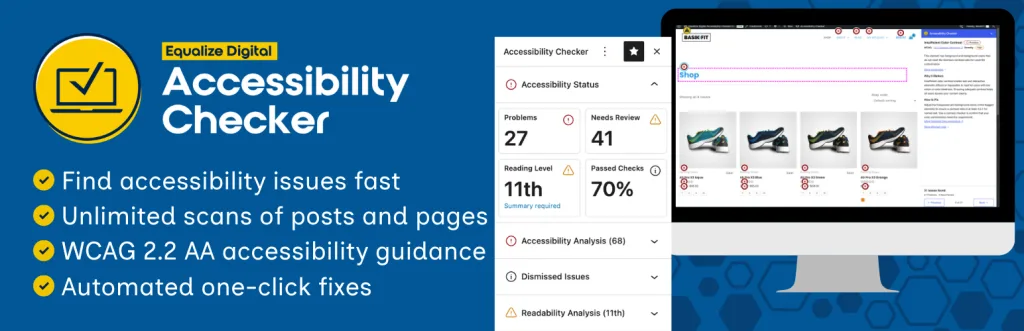
Accessibility Checker, by Equalize Digital, scans your pages as you write them. It flags real WCAG issues right in the editor, so you fix them before you publish.
It checks for missing alt text, low contrast, bad headings, and more. Each issue comes with a clear note on how to fix it. Unlike a simple widget, it does the real work of true compliance. For teams serious about accessibility and WCAG, this checker is the top pick.
- Scans pages for real WCAG issues
- Checks alt text, contrast, headings
- Clear fix notes in the editor
- Built for true compliance
2. WP Accessibility
Best for: Fixing common code issues. Download: wordpress.org/plugins/wp-accessibility
WP Accessibility is a trusted free plugin that fixes many common problems. It adds skip links, fixes some contrast issues, and flags missing alt text.
It works quietly in the background to patch small code issues in your theme. You can turn each feature on or off as needed. It is not a magic fix, but it removes many easy barriers. For a simple, reliable way to clean up basic accessibility problems, WP Accessibility is a great start.
- Adds skip links for keyboards
- Flags missing alt text
- Fixes some contrast issues
- Turn features on or off
3. Web Accessibility by Ally
Best for: Scanning plus guided fixes. Download: wordpress.org/plugins/pojo-accessibility
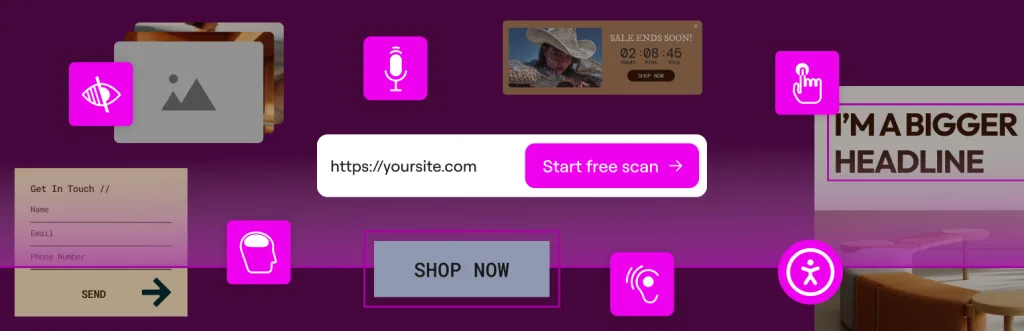
Web Accessibility by Ally, once known as One Click Accessibility, is a widely used plugin. It scans your site for WCAG issues and guides you through fixes.
It also adds a usability widget so visitors can adjust text size and contrast. That mix of scanning and user tools covers two needs at once. It is used on hundreds of thousands of sites. For a broad, popular accessibility plugin that both checks and helps, Ally is a strong choice.
- WCAG scanning and guided fixes
- Usability widget for visitors
- Adjust text and contrast
- Used on many sites
4. UserWay
Best for: A popular accessibility toolbar. Download: wordpress.org/plugins/userway-accessibility-widget
UserWay adds a well-known accessibility widget to your site. Visitors can open it to change contrast, text size, spacing, and more to suit their needs.
The widget is easy to add and looks polished. It gives users control over how they read your site. Keep in mind that a widget alone does not make you fully compliant. Still, for a quick way to offer helpful reading tools, UserWay is a widely trusted option.
- Polished accessibility widget
- Adjust contrast and text size
- Easy to add
- Trusted by many sites
5. One Tap Accessibility
Best for: A quick, one-tap toolbar. Download: wordpress.org/plugins/accessibility-onetap
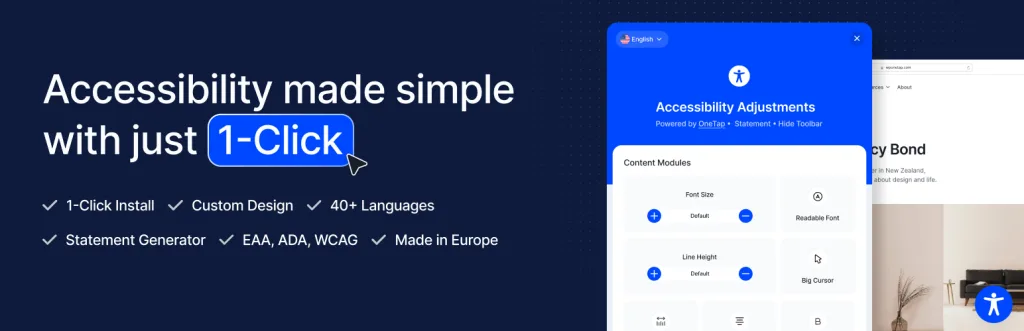
One Tap Accessibility adds a simple toolbar with one-tap tools. Visitors can quickly change contrast, font size, and other reading options.
It is light and easy to set up, with a clean widget design. Common tools like bigger text, link highlights, and a readable font are all there. It suits sites that want an easy toolbar without heavy setup. For a fast, friendly accessibility widget, One Tap is a handy pick.
- Simple one-tap toolbar
- Contrast and font size tools
- Light and easy setup
- Clean widget design
6. Accessibility Widget
Best for: Simple font and contrast controls. Download: wordpress.org/plugins/accessibility-widget
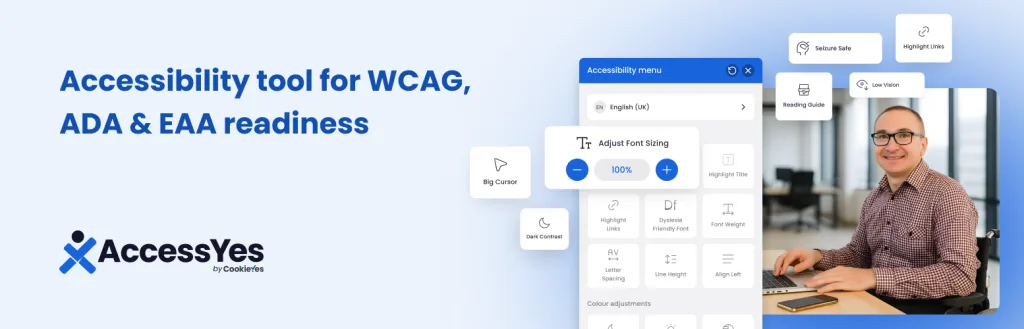
Accessibility Widget adds an easy tool that lets visitors resize text and change contrast. It focuses on the two changes people ask for most.
The widget is small and simple, so it does not clutter your design. Users can make text bigger or switch to high contrast in a click. It is a good fit for sites that want a light, focused tool. For basic reading controls that just work, Accessibility Widget is a clean choice.
- Resize text and change contrast
- Small, simple widget
- Does not clutter your design
- Easy for visitors to use
7. WP Accessibility Helper
Best for: A flexible accessibility toolbar. Download: wordpress.org/plugins/wp-accessibility-helper
WP Accessibility Helper, or WAH, adds a toolbar with many reading options. Visitors can change font size, contrast, and colors, and turn on a readable font.
It also helps flag some common issues, so it does a bit of both jobs. The toolbar is flexible, with settings you can adjust to fit your site. It suits owners who want more control over the widget. For a customizable accessibility toolbar, WP Accessibility Helper is a solid free pick.
- Toolbar with many options
- Font, contrast, and color tools
- Flags some common issues
- Flexible settings
8. DJ Accessibility
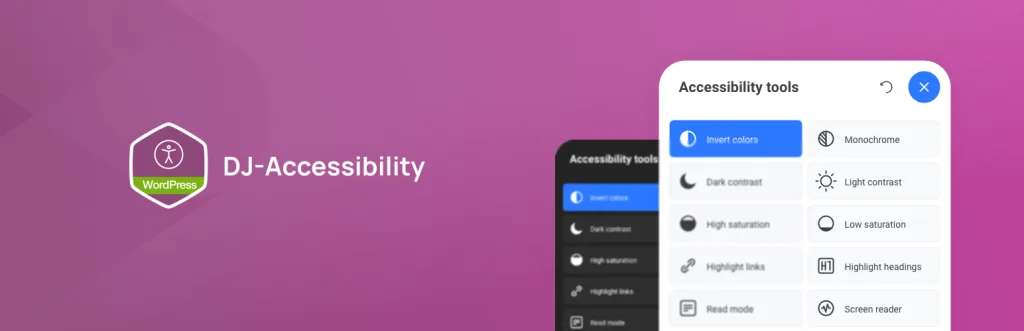
Best for: A clean toolbar with key tools. Download: wordpress.org/plugins/dj-accessibility
DJ Accessibility offers a tidy toolbar with the tools people use most. Visitors can adjust text, contrast, and spacing to read your site with ease.
It keeps things simple and clean, so it fits neatly on any site. Common options like link highlights and a bigger cursor are included. It is a good fit for owners who want a no-fuss widget. For a clean, easy accessibility toolbar, DJ Accessibility does the job well.
- Tidy, easy toolbar
- Text, contrast, and spacing
- Link highlights and big cursor
- Fits neatly on any site
9. Accessibility Plus
Best for: A broad set of reading tools. Download: wordpress.org/plugins/accessibility-plus
Accessibility Plus adds a wide range of reading and viewing tools. Visitors can change contrast, text, spacing, and more from one clear menu.
It aims to cover many needs in a single widget, so users find the right setting fast. The design is simple and works on most themes. It suits sites that want a full toolbar without extra plugins. For a broad, all-in-one accessibility widget, Accessibility Plus is a handy choice.
- Wide range of reading tools
- Contrast, text, and spacing
- One clear menu
- Works on most themes
10. Screen Reader with Font Size
Best for: Read-aloud and font size tools. Download: wordpress.org/plugins/screen-reader-with-fontsize
This plugin adds read-aloud and font size tools to your site. Visitors can have your content spoken to them and make the text larger.
The read-aloud feature helps people who find reading hard or prefer to listen. Font controls help those with low vision. It is a focused tool for two clear needs. For a site that wants a simple read-aloud and text-size option, this plugin is a helpful, focused pick.
- Read-aloud for your content
- Font size controls
- Helps low vision and reading
- Simple and focused
Quick Comparison: WordPress Accessibility Plugins
| Plugin | Best For | Type |
|---|---|---|
| Equalize Digital Checker | Finding WCAG issues | Checker |
| WP Accessibility | Common code fixes | Fixes |
| Web Accessibility by Ally | Scan plus widget | Both |
| UserWay | Popular toolbar | Widget |
| One Tap Accessibility | Quick toolbar | Widget |
| Accessibility Widget | Font and contrast | Widget |
| WP Accessibility Helper | Flexible toolbar | Widget plus flags |
| DJ Accessibility | Clean toolbar | Widget |
| Accessibility Plus | Broad reading tools | Widget |
| Screen Reader with Font Size | Read-aloud | Widget |
How to Choose the Right Accessibility Plugin
Start with a checker. Equalize Digital Accessibility Checker finds the real issues you must fix. That is the base of true WCAG compliance.
Then add a widget. UserWay, Ally, or One Tap give visitors reading tools. Use a checker and a widget together for the best result.
- Checker first: Find and fix real issues before anything else.
- Widget second: Add reading tools for visitors.
- Clean content: Add alt text and clear headings by hand.
- Test often: Re-scan as you add new pages.
Common Accessibility Mistakes to Avoid
Relying only on a widget. A toolbar helps, but it does not fix bad code. Use a checker too.
Skipping alt text. Every image needs alt text. Screen readers rely on it to describe your visuals.
Low color contrast. Light gray text is hard to read. Use strong contrast so everyone can read your content.
Messy headings. Use headings in order. Clear structure helps screen readers and search engines alike.
Frequently Asked Questions
What is the best WordPress accessibility plugin?
Equalize Digital Accessibility Checker is best for finding issues, while WP Accessibility and UserWay help fix common problems fast.
Do accessibility plugins make my site WCAG compliant?
They help, but no plugin makes a site fully compliant on its own. Use a checker to find issues, then fix them in your content and theme.
Are these accessibility plugins free?
Yes. Each has a free version on WordPress.org. Paid plans add deeper scans, more fixes, and priority support.
What is WCAG?
WCAG stands for Web Content Accessibility Guidelines. It is the global standard for making websites usable by people with disabilities.
Do I need an accessibility plugin?
Yes, if you value all visitors and want to reduce legal risk. Accessible sites reach more people and often rank and convert better.
What does an accessibility checker do?
A checker scans your pages for issues like missing alt text, low contrast, and bad headings, then shows you how to fix them.
Are accessibility widgets enough on their own?
No. Widgets help users adjust text and contrast, but real compliance also needs clean code, alt text, and good structure.
Can these plugins fix color contrast?
Some can adjust contrast through a widget. To truly fix contrast, update your theme colors so text is easy to read.
Do accessibility plugins help SEO?
Yes, indirectly. Clean headings, alt text, and clear structure help both screen readers and search engines understand your pages.
Can I use more than one accessibility plugin?
Usually pick one toolbar plus one checker. Too many can clash or add duplicate widgets, which confuses users.
Conclusion
The best WordPress accessibility plugins help your site work for everyone. Equalize Digital Accessibility Checker finds real WCAG issues, WP Accessibility fixes common ones, and widgets like UserWay give visitors helpful tools.
Whichever you pick, use a checker plus a widget, add alt text, and keep contrast strong. An accessible site reaches more people and lowers your legal risk.
Want a clean, well-coded theme that supports accessibility? Explore our free WordPress themes at StrivioThemes and build a site everyone can use.