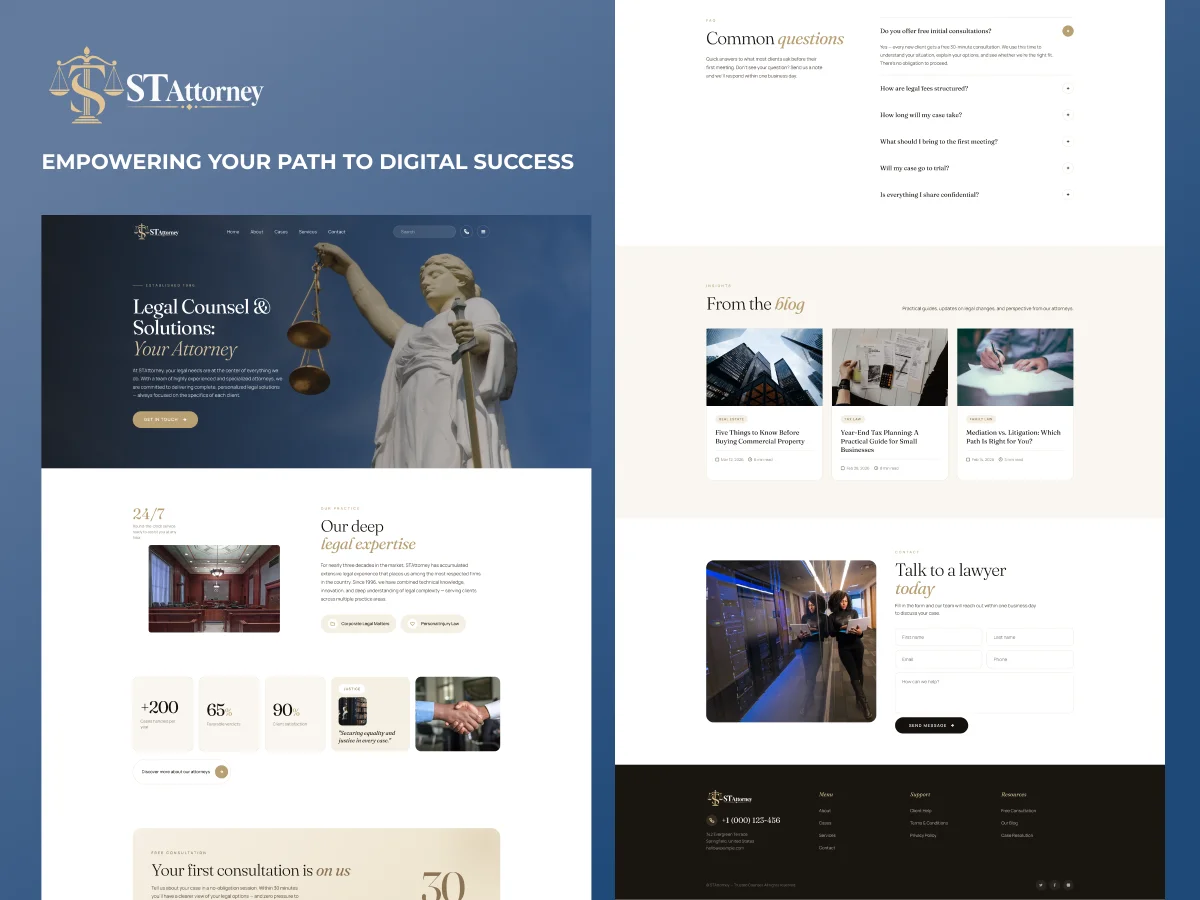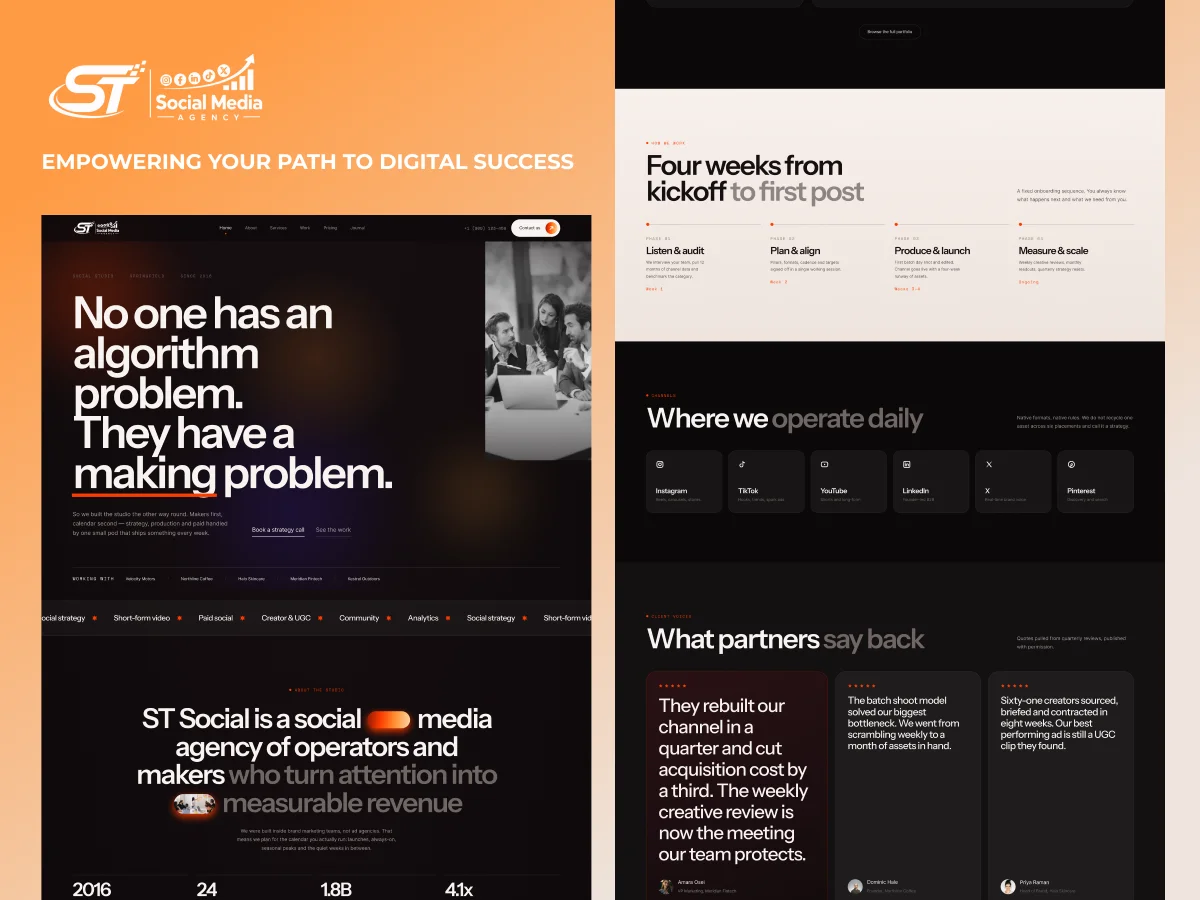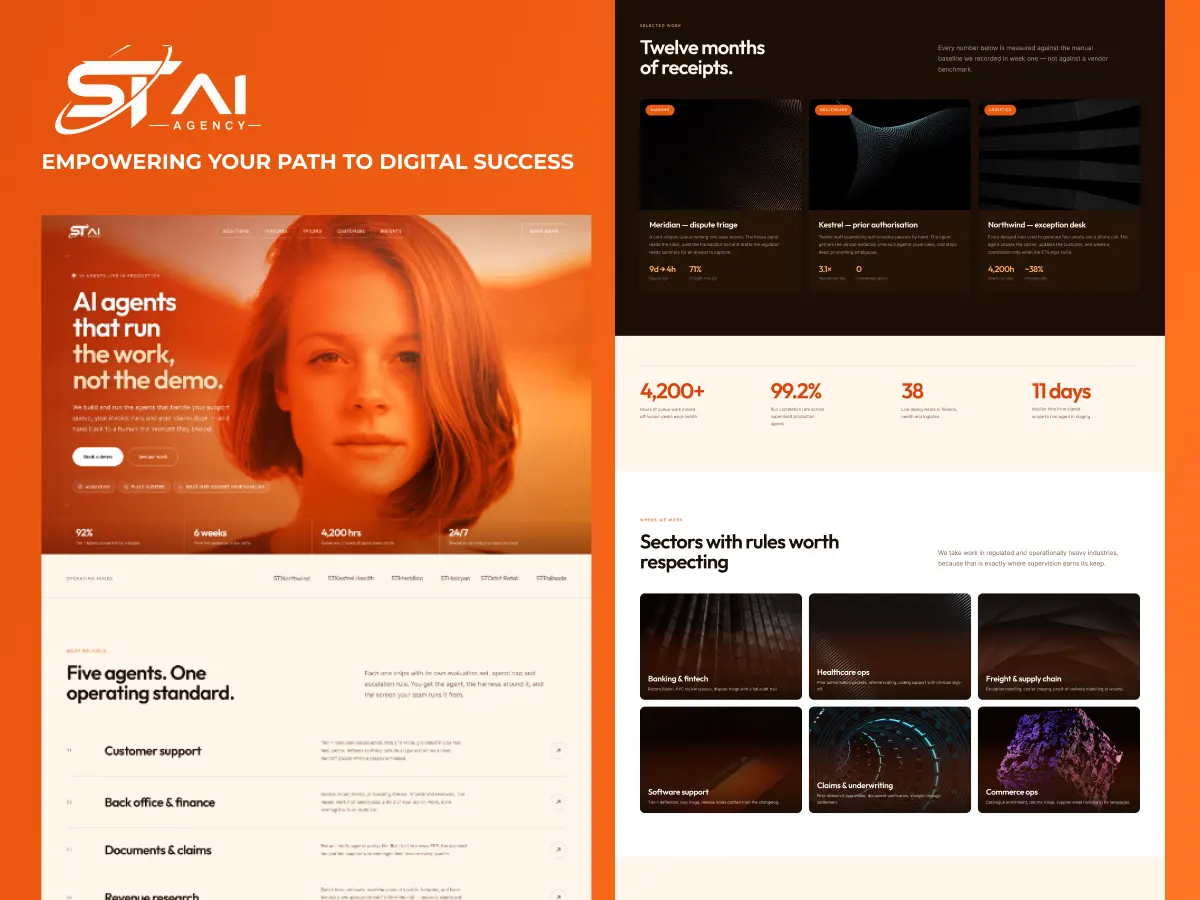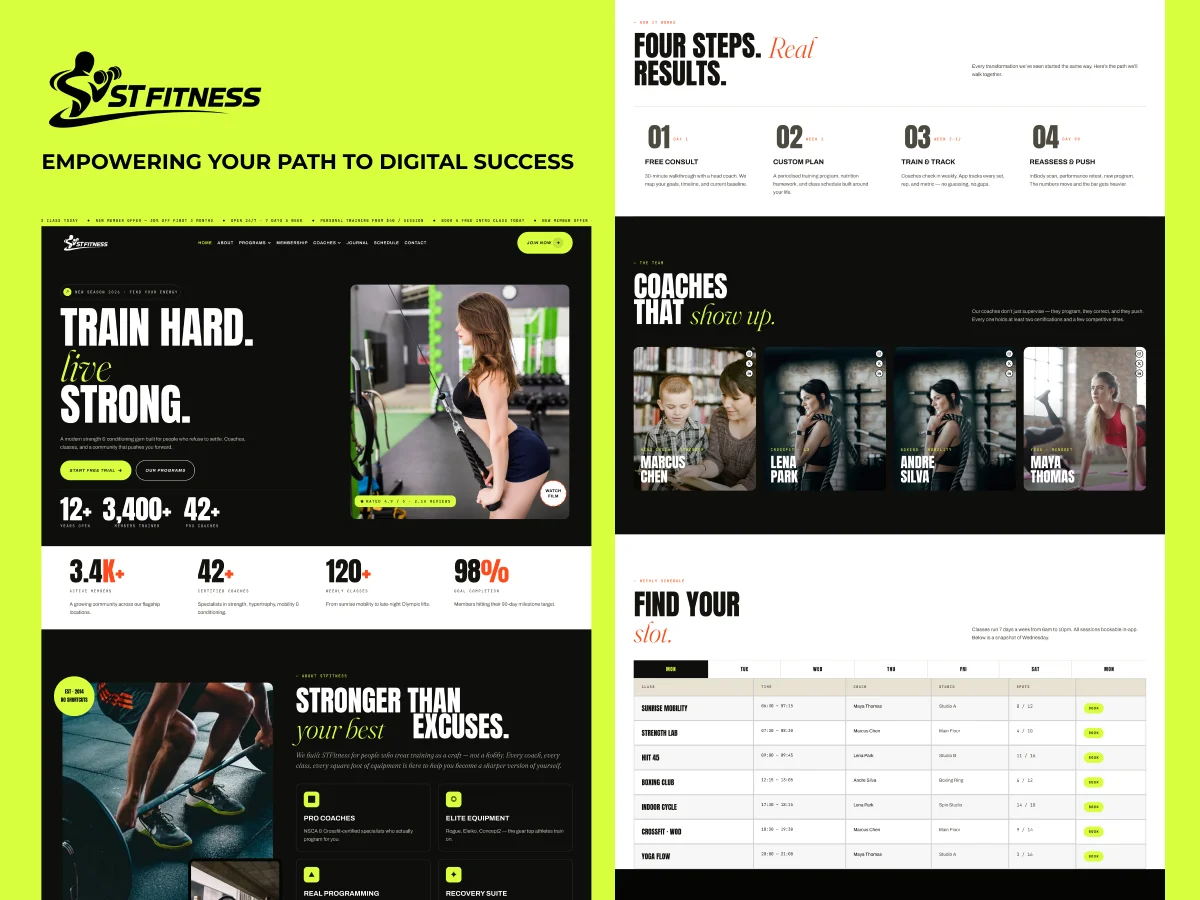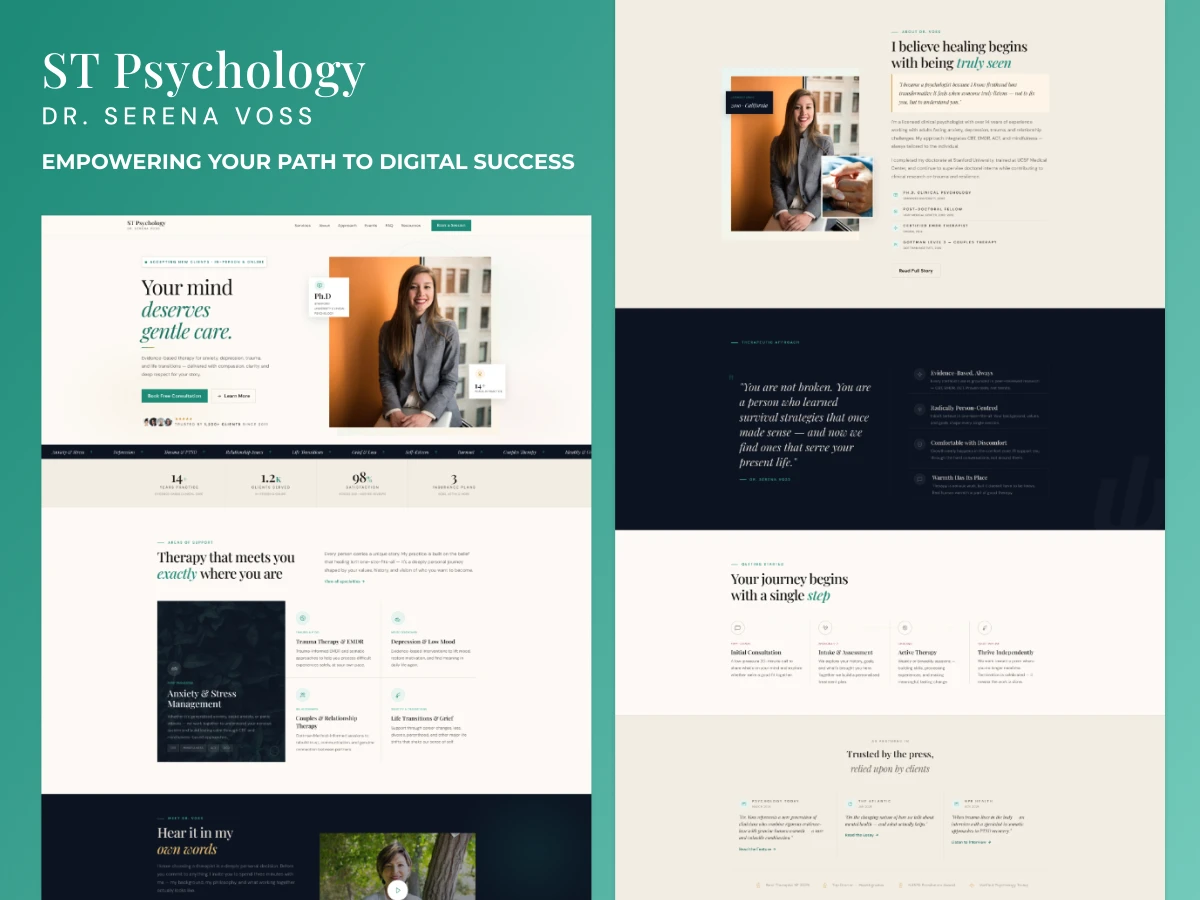
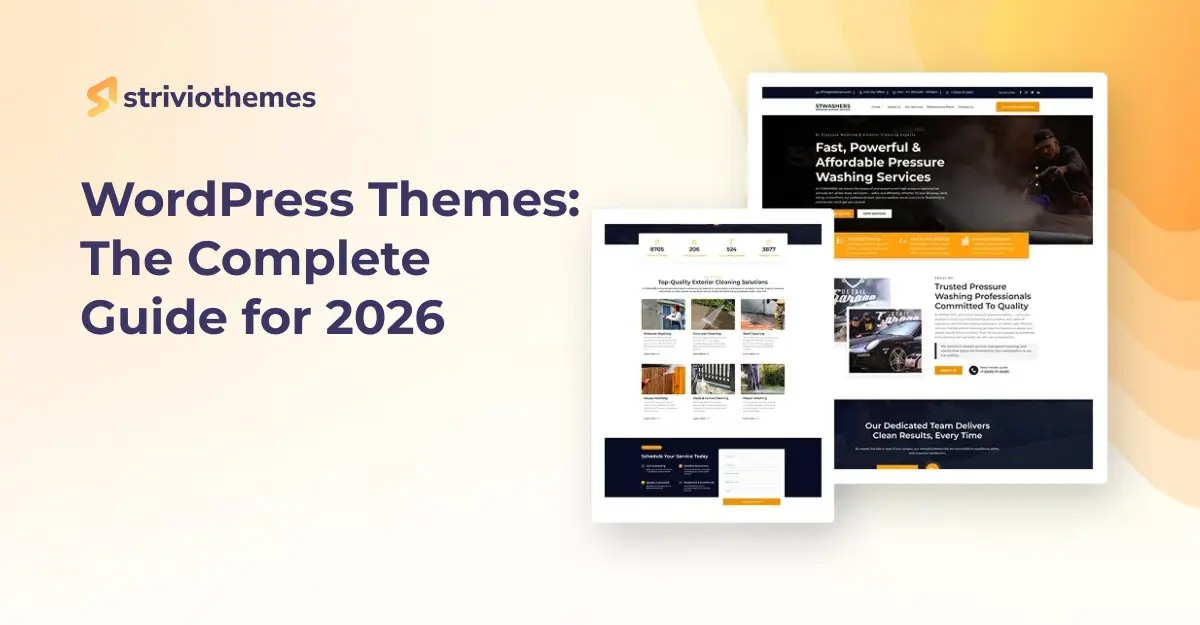
WordPress themes are the design layer that sits on top of your content. They control your fonts, colors, layouts, header style, footer style, and how your pages flow on mobile. Pick the right one and your site loads fast, looks professional, and stays easy to update. Pick the wrong one and you’ll fight it for the next two years.
This guide walks you through everything you need to know before choosing a theme: how themes actually work, the difference between free and premium options, the new block themes versus classic themes, what to test before you commit, and which themes consistently get recommended in 2026.
We’ve installed and stress-tested every theme mentioned in this guide. The recommendations aren’t pulled from affiliate dashboards or generic blog roundups. They reflect what holds up under real traffic, real plugin combinations, and real content edits over months, not minutes.
What is a WordPress theme?
A WordPress theme is a collection of files that controls the visual presentation of your website. It includes templates for your homepage, blog posts, archives, and pages, plus stylesheets, fonts, and any built-in functionality the theme author chose to bundle.
Your content lives separately in the WordPress database. That’s why you can switch themes without losing your blog posts or pages. The theme just decides how that content gets displayed.
Most modern WordPress themes ship with multiple layout options, header and footer choices, and starter templates you can import in one click. The better ones also include performance optimization and accessibility features built into the code.
Free vs premium WordPress themes
The WordPress.org repository hosts around 14,000 free themes. Every theme there has been reviewed by the WordPress theme team for code quality, security, and licensing. That’s why a free theme from the official directory is generally safer than a free theme you downloaded from a random blog.
Premium themes typically cost between $30 and $100 as a one-time purchase, or $50 to $200 per year for a license that includes support and updates. The added cost buys you premium support, regular feature updates, more starter templates, and usually a more polished design system.
| Factor | Free Themes | Premium Themes |
|---|---|---|
| Cost | $0 | $30 to $200+ |
| Support | Community forum | Direct support team |
| Updates | Varies by author | Regular and predictable |
| Starter templates | 5 to 20 typical | 50 to 300+ typical |
| Code quality | Reviewed by WP team | Varies by vendor |
| Customization depth | Often limited | Usually deep |
Most beginners do well starting with a free theme like Astra or Kadence. You can always upgrade to the pro version of the same theme later without rebuilding your site.
Classic themes vs block themes (FSE)
WordPress now supports two theme systems. Classic themes use PHP templates and the WordPress Customizer for editing. Block themes, also called Full Site Editing or FSE themes, let you edit every part of the site, including the header and footer, using the visual block editor.
Block themes represent where WordPress is headed. According to recent ecosystem data, more than 75% of new themes submitted to the directory in 2025 were block themes. The default Twenty Twenty-Five theme is a block theme.
That said, classic themes still dominate by install count. Astra, Hello Elementor, OceanWP, and most page-builder-friendly themes remain classic themes for now. If you plan to use Elementor or another page builder, a classic theme is still usually the safer choice.
How to choose the right theme for your site
The right WordPress theme depends on three things: what kind of site you’re building, which page builder you plan to use, and how much you want to customize. Run through these questions before you pick:
- What is the primary purpose? A blog, a portfolio, a store, a service business site, and a magazine all have different needs.
- Will you use a page builder like Elementor, Beaver Builder, or Divi? If yes, choose a theme built for it.
- How important is page speed? If SEO traffic matters, prioritize lightweight themes with small page weight.
- How active is the developer? Check the last update date in the WordPress directory before installing.
- Does it support the plugins you need? WooCommerce, LearnDash, BuddyPress, and similar plugins require specific theme compatibility.
Pro Tip: Spin up a free staging site at WordPress Playground (playground.wordpress.net) and test any theme there before installing it on your live site. You can stress-test layouts, performance, and plugin conflicts in five minutes without touching production.
Top WordPress themes recommended in 2026
These are the themes that consistently rank high for active installs, ratings above 4.7, and regular update cadence. Each has a clear use case it does better than the rest.
| Theme | Best For | Active Installs | Type |
|---|---|---|---|
| Astra | Multipurpose builds with page builders | 1.8M+ | Classic, Free + Pro |
| Hello Elementor | Elementor-only sites | 1M+ | Classic, Free |
| Kadence | Block editor users | 500K+ | Classic, Free + Pro |
| GeneratePress | Performance-focused builds | 500K+ | Classic, Free + Pro |
| Blocksy | WooCommerce stores | 200K+ | Classic, Free + Pro |
| Neve | Mixed Elementor and block users | 300K+ | Classic, Free + Pro |
| Divi | Designers who want full visual control | Premium only | Classic, Premium |
| Twenty Twenty-Five | Sites built fully with FSE | Default theme | Block, Free |
How to install a WordPress theme
Installing a theme from the WordPress directory takes about 30 seconds. Installing a premium theme you purchased takes about a minute longer because you upload a ZIP file instead.
- Log in to your WordPress dashboard.
- Go to Appearance > Themes > Add New.
- Search for the theme by name, or click Upload Theme if you have a ZIP from a premium vendor.
- Click Install, then click Activate.
- Open Appearance > Customize or the Site Editor and import a starter template if your theme offers one.
Always create a backup before activating a new theme on a live site. Plugins like UpdraftPlus or Duplicator handle this in two clicks. If something looks broken after activation, you can restore in minutes.
Performance and SEO considerations
Your theme has a direct impact on your Core Web Vitals scores, which affect both user experience and Google rankings. A bloated theme with too many built-in features can drag your Largest Contentful Paint above two and a half seconds, which is the threshold Google uses for good performance.
Lightweight themes like Hello Elementor (around 21KB), GeneratePress (around 30KB), and Astra (under 50KB of frontend resources) consistently score above 90 on mobile PageSpeed when paired with a good cache plugin and lazy-loaded images.
Schema markup, semantic HTML, and accessibility features also matter for SEO. Most reputable themes from the WordPress directory now ship with these baked in, but it’s worth verifying before you commit.
Common Mistakes to Avoid
Picking based on the demo screenshot alone
The demo always looks great because the theme author paid a designer for that one specific layout. What matters is how the theme behaves with your content, your plugins, and your traffic.
Ignoring the last update date
A theme that has not been updated in over a year is a security and compatibility risk. Check the date in the WordPress directory before installing.
Loading too many starter sites
Importing a starter template often loads dozens of plugins and demo content. After you customize, deactivate and delete what you do not use, or your site will slow to a crawl.
Buying a premium theme before testing the free version
Most premium themes have a free version on WordPress.org. Try it for two weeks before paying. You will know quickly whether the design system matches how you actually work.
Key Takeaways
- A WordPress theme controls design, not your content. You can switch themes without losing posts or pages.
- Free WordPress themes from WordPress.org are reviewed for code quality and safe to use. Premium themes add support, more templates, and deeper customization.
- Block themes (FSE) are the future, but classic themes still dominate active installs. Pick based on whether you plan to use a page builder.
- Test any theme on a staging site before going live. Always run a backup first.
- Lightweight, regularly updated themes win for both SEO and user experience.
Frequently Asked Questions
Are WordPress themes free?
Many are. The official WordPress.org directory hosts nearly 14,000 free themes. Premium themes typically cost between $30 and $200.
Can I switch WordPress themes without losing content?
Yes. Your posts, pages, and media stay in the database. Only the design changes when you switch themes. Some theme-specific shortcodes or widgets may need reconfiguring.
What is the most popular WordPress theme?
Astra is the most installed non-default theme on WordPress.org with over 1.8 million active installs and more than 7 million all-time downloads.
Are premium themes worth it?
Premium themes are worth the cost when you need direct support, regular updates, deep customization, or starter templates that match your industry.
What is a block theme?
A block theme is a WordPress theme built for Full Site Editing (FSE). You can edit headers, footers, and templates using the block editor instead of writing code.
Which WordPress theme is fastest?
Hello Elementor and GeneratePress are consistently the lightest themes, both loading well under 50KB of frontend resources.
Can I customize a free WordPress theme?
Yes. Most free themes support customization through the WordPress Customizer or the Site Editor. Pro versions usually unlock deeper layout and styling options.
Do WordPress themes affect SEO?
Yes. Theme code quality, page speed, schema markup, and accessibility all affect SEO. A poorly built theme can hurt rankings even if your content is excellent.
What is the difference between WordPress.org and WordPress.com themes?
WordPress.org themes work on any self-hosted WordPress site. WordPress.com themes are limited to the hosted WordPress.com platform unless you have a Business plan.
How often should I update my WordPress theme?
Apply theme updates as soon as they are released, especially security patches. Always run a backup before updating in case the update conflicts with a plugin.
Conclusion
Choosing the right WordPress theme is one of the most important decisions you make when launching a site. The theme affects your speed, your SEO, your design, and how easy your site is to update over the next several years. Take the time to test before you commit.
For most builds in 2026, starting with a lightweight, well-supported theme like Astra, Kadence, or GeneratePress will save you hours of frustration later. Match the theme to your page builder, test it on a staging site, and only upgrade to a premium version once you know the design system fits how you work.
Next Step: Ready to pick a theme? Start with our roundup of the 15 best WordPress themes of 2026 to compare top picks side by side.
Keep Reading
More WordPress basics:
- 20 Types of WordPress Websites That You Can Create
- Difference Between WordPress Themes and Templates
- 5 Mistakes Beginners Make When Choosing a WordPress Theme | A Complete Guide
- Top 10 Beginner-Friendly WordPress Themes
- The Ultimate WordPress Theme for First-Time Website Owners
- What Is WordPress? A Simple Guide for Beginners